honorlock for students
Honorlock is a virtual proctoring tool which ensures the integrity of your exams by monitoring your test environment and behaviors while testing. Support is provided 24/7 through Honorlock's live chat so you can resolve any issues you encounter quickly and focus on your exam.
If your instructor allows exams to be proctored with Honorlock, be sure to familiarize yourself with Honorlock's requirements and guidelines. Additionally, we recommend taking the Practice Exam in ICON to ensure your computer's compatibility with Honorlock. Preparing before exam day means you are more likely to have an effortless experience.
Virtual proctoring essentials
Before taking your exam, install the Honorlock Chrome extension, the Honorlock desktop application and the Honorlock mobile application.
On exam day, you'll undergo a brief verification process, which includes showing your identification, performing a workspace scan, and setting up your mobile phone to provide a side view of your behaviors and surroundings while completing your exam. Recording will start at the beginning of this process, and you'll begin your exam once verification is complete.
Honorlock provides step-by-step instructions to install the required extension and applications during the verification process; however, we highly recommend you take the Practice Exam available in the Exams module on your ICON site prior to completing a graded exam to ensure a smooth testing experience. By completing the Practice Exam, which has identical requirements to graded exams, you will have all required software available and know what to expect when you complete the verification for your actual exam(s).
For troubleshooting tips, read Honorlock Best Practices for Test Takers.
Virtual proctoring support
Honorlock support is available on-demand, 24/7, through live chat. As you navigate your exam, you can access support in real time without leaving your test session. Simply select the bubble in the bottom right corner of the exam or the "Live Chat" link directly under the exam timer.
Still have questions about using Honorlock? You can find additional information here:
Certain issues occur frequently enough during virtually proctored exams that they deserve special attention. To help you navigate these common challenges, we've compiled a list of Frequently Asked Questions (FAQ) and their solutions below.
Starting out
Take this guided tour to see how easy it is to prepare for an exam that uses Honorlock.
Guidelines for Honorlock
Each Honorlock session is reviewed for irregularities. Learn more about academic misconduct and what is reported to your instructor.
Student privacy
Honorlock is committed to safeguarding all student data collected during exams.
Frequently asked questions: Honorlock
"Access code needed" message appears
Access codes are not needed to start an exam. If you get the "Access code needed message" try any of the following solutions:
- Be sure you are not using Respondus Lockdown Browser & Honorlock at the same time. If you are, close your browsing window and open the exam using your normal Chrome browser not Respondus Lockdown Browser.
- Log out of all tabs that have ICON open, then log back in to ICON.
- Update to the latest version of Chrome.
- Close Chrome and all associated tabs and then re-open Chrome.
- Clear the cache in Chrome.
- Un-install Honorlock and then re-install Honorlock to catch any updates.
- Restart the computer.
Contact Honorlock's live chat. They can walk you through other possible solutions.
Unable to find the exam
The Proctored Exams Portal does not have a direct link to the exam; the portal only schedules exam appointments. Selecting the exam name in the Proctored Exams Portal will not start the exam. When selecting the exam name in the Proctored Exams Portal, a pop-up window with exam details (materials allowed, etc.) appears.
To start your virtually proctored exam:
- Open your course ICON site.
- Select the Quizzes page.
- Select the name of the exam you wish to take.
- Select the “Take the Quiz” button.
Install the Honorlock extension
The Honorlock extension is simple to install.
You may have difficulty installing the Honorlock extension due to interference from another extension. Visit the Honorlock website to learn more about the extensions that can interfere with Honorlock.
Remove other proctoring extensions
If you have used Proctorio, or another virtual proctoring tool which uses an extension, we recommend removing the extension from your machine. Other proctoring extensions can interfere with the use of Honorlock.
- Select the three vertical dots in the top right hand corner of Chrome.
- In the menu that appears, look for More Tools.
- In the More Tools menu, open Extensions.
- Locate the Proctorio extension and select the Remove button.
- Restart Chrome and attempt to open the exam again.
Install the Honorlock desktop application
You must install the Honorlock desktop application, which works in tandem with the Honorlock Chrome extension, to complete University of Iowa exams using Honorlock. The Honorlock App will block a broader range of desktop applications than the extension alone.
Step-by-step instructions to install the Honorlock desktop application are available on the Honorlock website.
Install the Honorlock mobile application
When you begin the authentication steps, you will select “Use Honorlock Mobile App” to initiate a secure bridge between your desktop and phone.
Note: The mobile app works only on phones. The mobile app is not compatible with iPads or tablets.
Step-by-step instructions to install the Honorlock mobile application are available on the Honorlock website.
Setting up a side-angle camera
You will need to set up a side-angle camera, which provides a wider view of the workspace and captures video of your hands, the keyboard, and the surrounding area, to complete University of Iowa exams using Honorlock.
You can use your smartphone as an additional webcam to provide this side-angle view. You can use your iPhone as a webcam on the latest version of MacOS, or you can use your Android Phone in Webcam Mode with the latest version of Android, with either MacOS and Windows.
Step-by-step instructions to set up a side-angle camera are available on the Honorlock website.
Workspace scan
The workspace scan is an authentication step you must complete before completing a University of Iowa exam with Honorlock. It requires you to take a single, wide-angle photo of your desk and workspace. This photo provides a clear record of your testing environment for your instructor or exam administrator.
Step-by-step instructions to complete the workspace scan are available on the Honorlock website.
QR codes
If the QR code for the workspace scan is not working, please try the following:
- Adjust the resolution of your screen to change the size of the QR code
- Contact Honorlock via live chat.
- Exit your current authentication session and start a new one. When reach the step to connect the Mobile App to the online exam, select "Continue on this computer instead" rather than using your phone. You will be prompted for a room scan rather than a workspace scan.
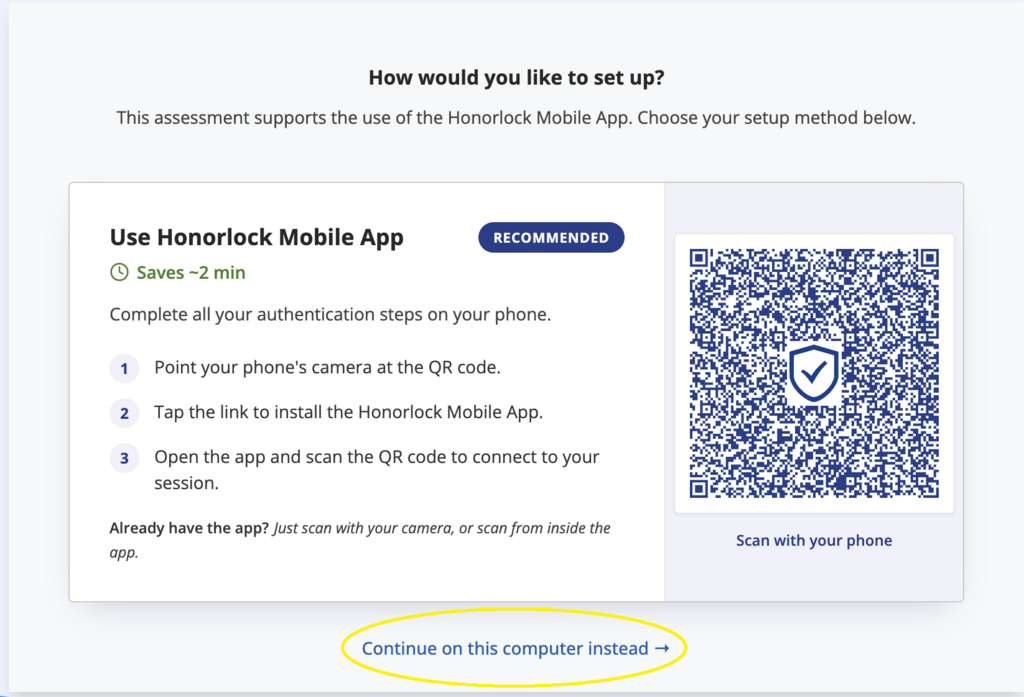
NOTE: Honorlock will be pushing out an update the week of July 13, 2026 to address this issue.
Screen sharing or recording errors
When taking an Honorlock-enabled exam, you will be asked to share the contents of your screen. This occurs after you have successfully launched screen recording. A window will display with a preview of your screen and the option to share or cancel.
Select the preview of the screen first. This will make the share button clickable. Once you have selected your screen, click the blue share button to start screen sharing.
If you are having any trouble with screen recording or sharing, try the suggestions below. You can also visit the Honorlock page for more details.
Troubleshoot on a PC
If you are struggling to share your screen, be sure to check your device's privacy settings. You must allow Google Chrome to access your camera and microphone.
- Type Microphone Privacy Settings within the Windows search bar.
- On the settings page, verify that the Allow access to the microphone toggle is on.
- Type Camera Privacy Settings in the Windows search bar.
- Verify that the Allow Apps to Access Your Camera toggle is on.
- Restart your computer for the changes to take effect.
Troubleshoot on a Mac
- Click the Apple icon in the top left corner of the screen.
- Then, click System Preferences → Security & Privacy → Privacy.
- Scroll through the apps and devices listed, searching for camera and microphone.
- Select both.
- Verify whether Google Chrome has a checkmark in the Camera and Microphone sections. If you are unable to click the box, click the golden lock in the lower left corner of the screen. Then, enter your password. Now, you can put a checkmark in Chrome for both the Camera and Microphone sections.
- Restart your computer for the changes to take effect.
No student ID
You can use more than a University of Iowa student ID to start the exam.
You can use any government-issued ID (e.g. driver's license, passport, etc.). In the rare event that you have no ID of any kind on the day of the exam, please contact your course instructor to make other arrangements.
Clear the cache
While browsing the internet, Chrome tries to keep some items in its “short-term memory.” This makes it easier to load the next time. This “memory” can get in the way when a page has been updated or changed.
Clearing the cache can solve problems in both ICON and Honorlock:
- Open Chrome.
- In the top right-hand corner, click on the three vertical dots.
- Select “More tools” and then select “Clear browsing data.”
- Choose a time range. (Exam Services recommends selecting “All time.”)
- Check only the boxes next to “Cached images and files” and “Cookies and other site data.”
- Select “Clear data.”
- When complete -- and it will only take a few moments -- close Chrome and all associated tabs. Then, re-open Chrome.
Google has more information about clearing the cache and cookies.
Webcam error
This type of error is related to permission issues. It typically means that either Google Chrome is unable to access your webcam or your webcam is not working correctly. You can verify whether your webcam is working correctly.
If your webcam is working, then you will need to verify the webcam's access. Webcam access can be restricted at multiple levels: the entire system, your browser, on a specific website, or for a specific Chrome extension. Honorlock support provides hardware troubleshooting steps for both Windows and Mac.
Be sure to use a forward-facing camera in a well-lit room to prevent Honorlock from flagging your session and reporting it to your instructor.
Hats not allowed
To maintain a secure testing environment, hats may only be worn with the brim facing backwards. No other head coverings are allowed during exams, including but not limited to hoods on jackets or coats, unless the head covering is religious in nature.
Personal computer incompatible with Honorlock
If your personal computer doesn't work with Honorlock, we recommend reaching out to family or friends to borrow a laptop or use a desktop.
You should note that the frequently used Honorlock desktop app is not compatible with Chromebooks. The Honorlock desktop app only works with Windows and Mac computers.
If you do not have access to a computer that works with Honorlock, contact us at exam-services@uiowa.edu or 319-384-4800 to schedule an alternative testing space.
Quiet campus spaces for testing
If you have a computer with Honorlock installed but need access to a quiet/private location, you can learn about spaces available for students to use on campus at Learning Spaces.
"Take the Quiz" button is missing
To start an exam or a quiz in ICON, select the “Take the Quiz” button that appears underneath the quiz description. There are multiple reasons why the "Take the Quiz" button could be missing:
- Exam deadline has passed in ICON. Contact the instructor for an extension.
- Not using Chrome to open the quiz or exam.
- Problem with Honorlock installation. Un-install and then re-install Honorlock, and remove any other proctoring extensions.
If none of the these solutions work, contact Honorlock's live chat or Exam Services.
Opt out of scheduling reminder emails
The Proctored Exams Portal will continue to send reminder emails to unscheduled students until the exam window opens. If you don't wish to receive reminder emails and plan to test with the virtual proctor, visit the Proctored Exams Portal FAQ page to learn how to stop reminder emails.